


 GLOBAL | English
FGLair™ app SET UP - STEP4: Pairing USB: RC type 5- Manual connection
1
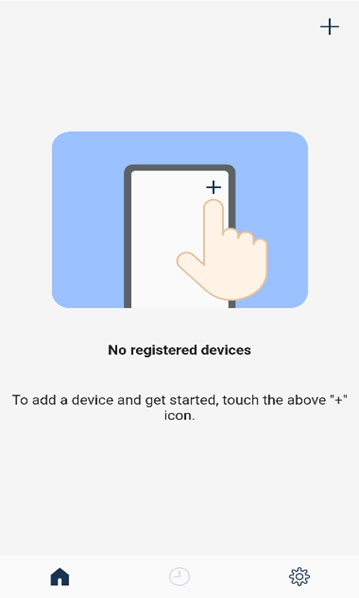
Tap [+] to add a new air conditioner.
2
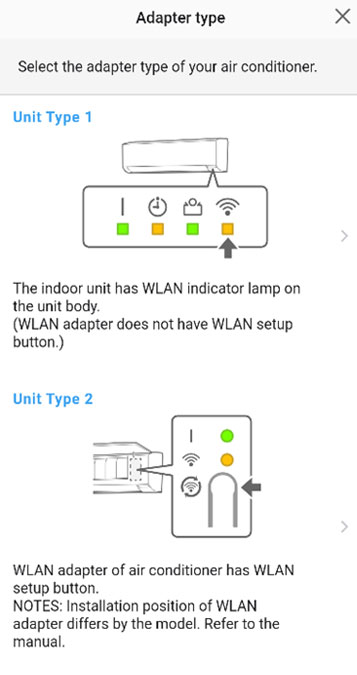
Select the adapter type of your air conditioner.
3
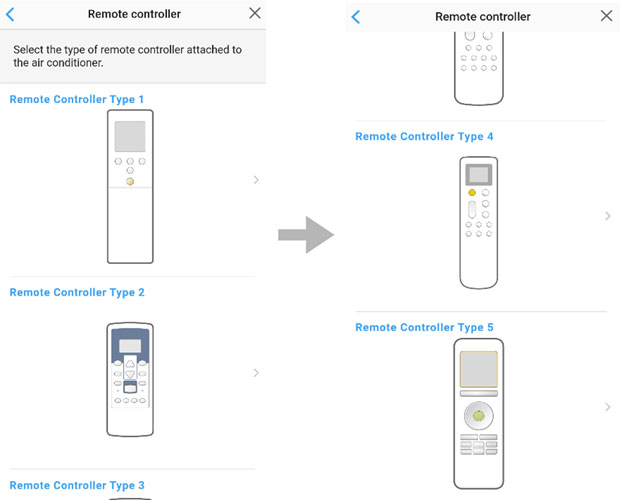
Select a [Remote Controller Type 5].
Page scroll
4
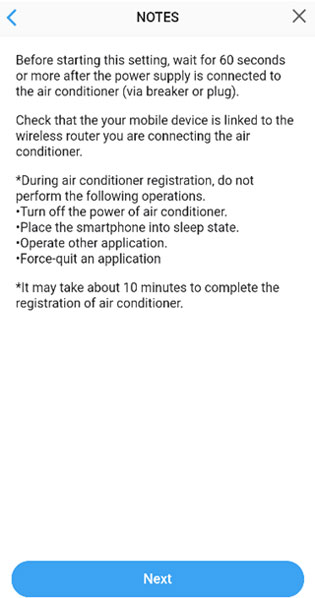
Read the note and tap [Next].
5
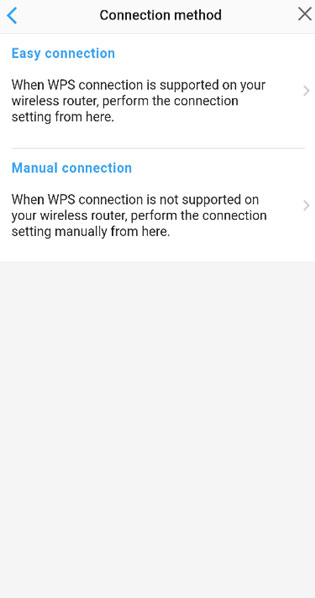
Select a [Manual connection].
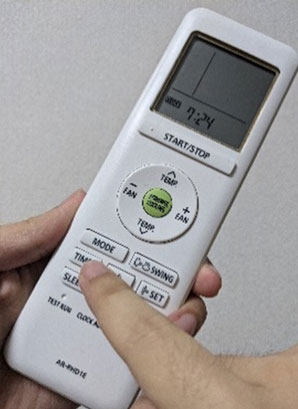
6 * Remote controller shown is a representative model.
【RC type 5】
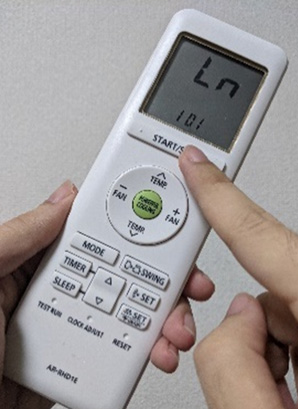
Press down [TIMER] on the remote controller for more than 5 seconds.
7
【RC type 5】
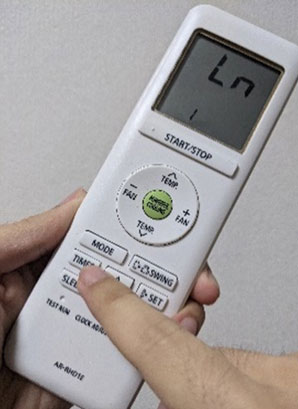
[Ln] will be displayed on the remote controller display.
8
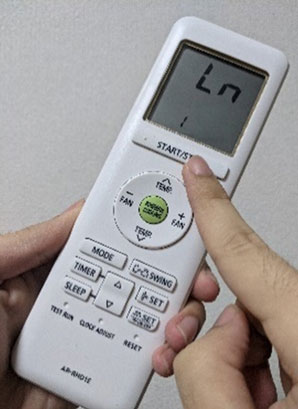
Press  .
.
9
Select [01] using 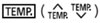 .
.

10
Press .
 on the indoor unit will blink.
11
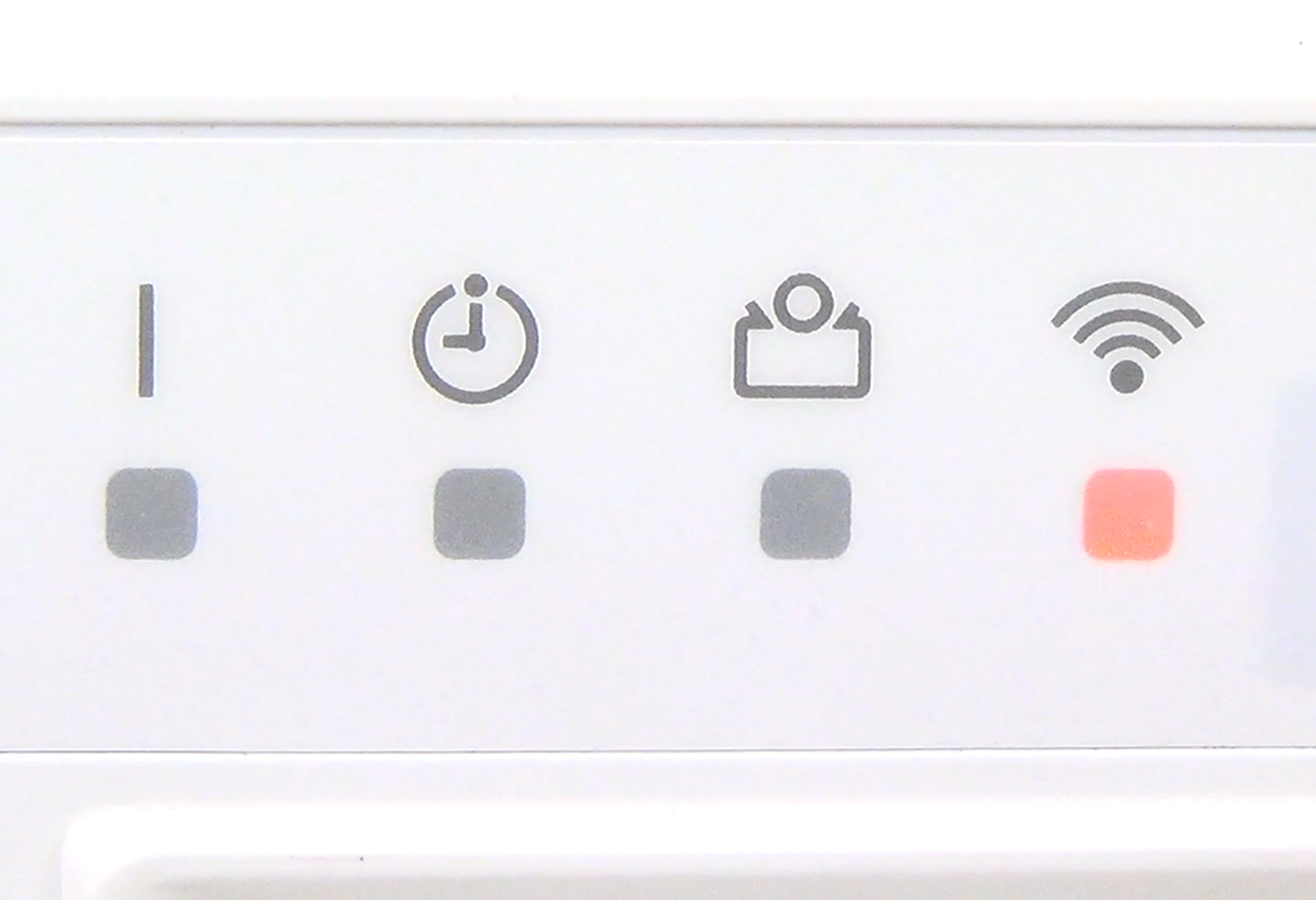
WLAN indicator lamp on the indoor unit will blink.
12
Select [Next] on the mobile app screen.
Page scroll
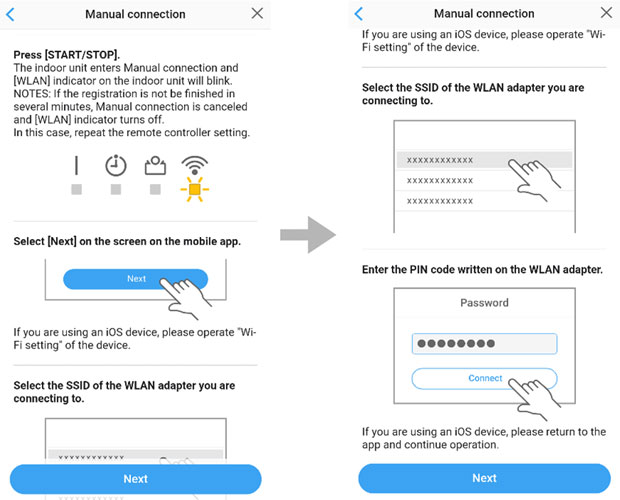
Open [Setting] -> Wi-Fi by following the instructions on the mobile app.
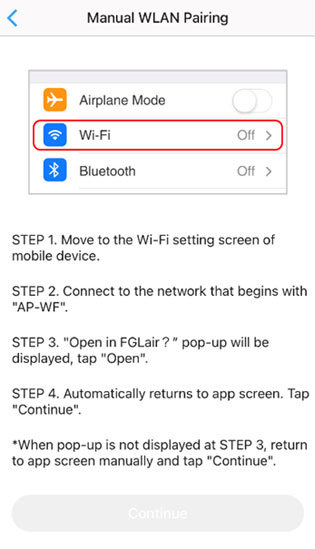
Select the SSID of the air conditioner you are connecting to.
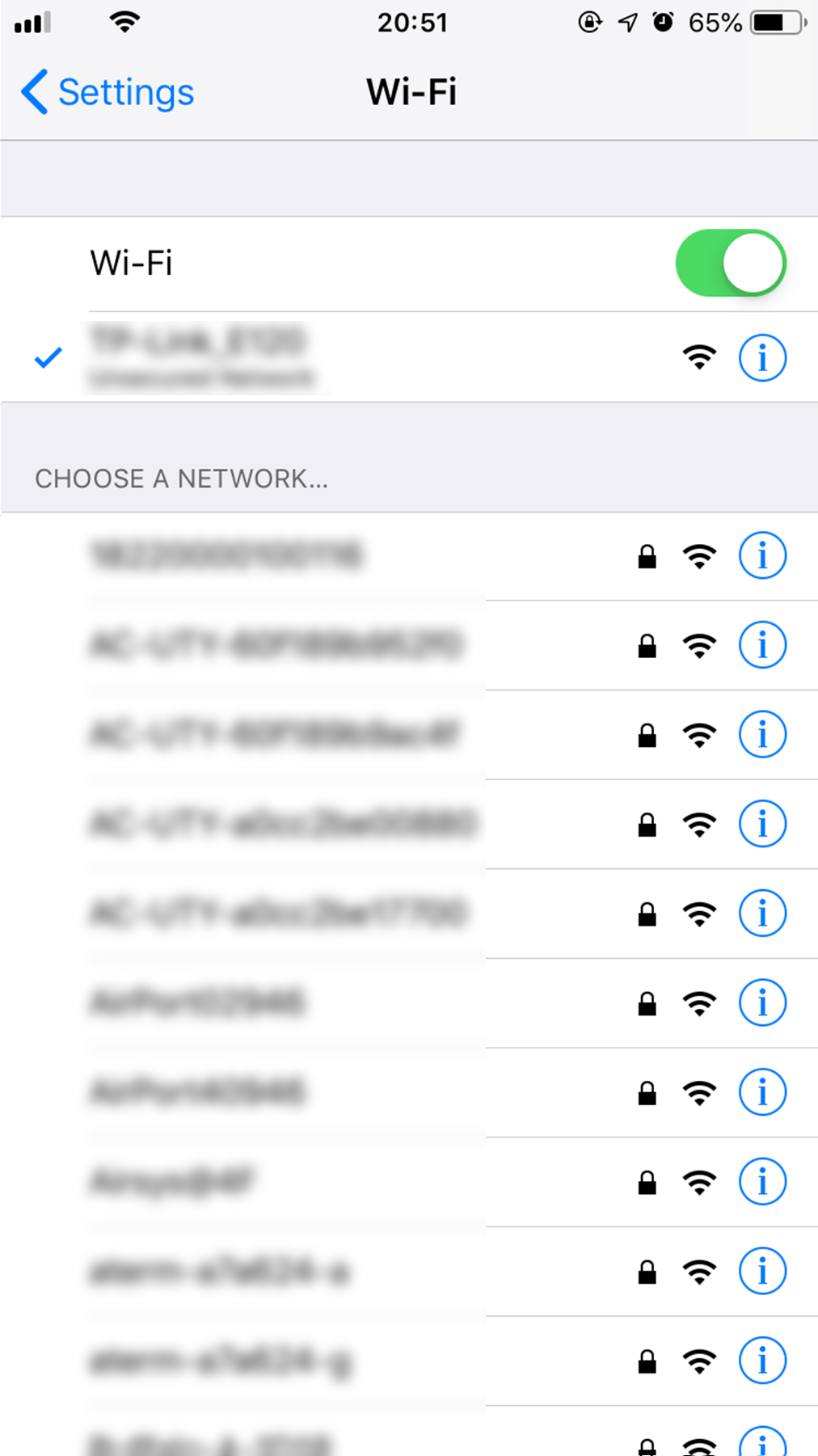
Enter the PIN code written on the WLAN adapter then press [Join].
Depending on the type of WLAN adapter, you may not need to enter a password.
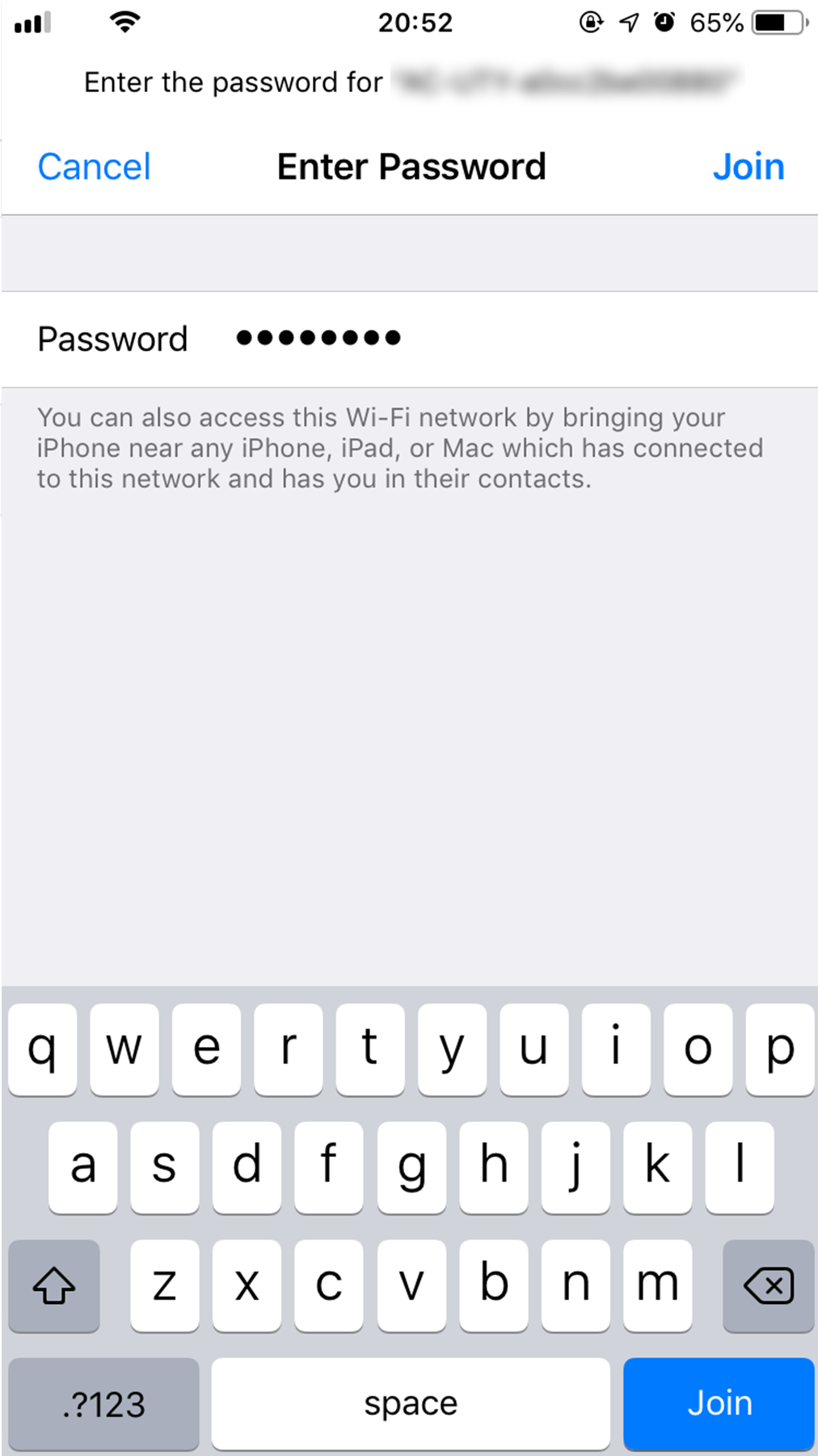
"Open in FGLair?" pop-up will be displayed, tap [Open].
When pop-up is not displayed, return to app screen manually.
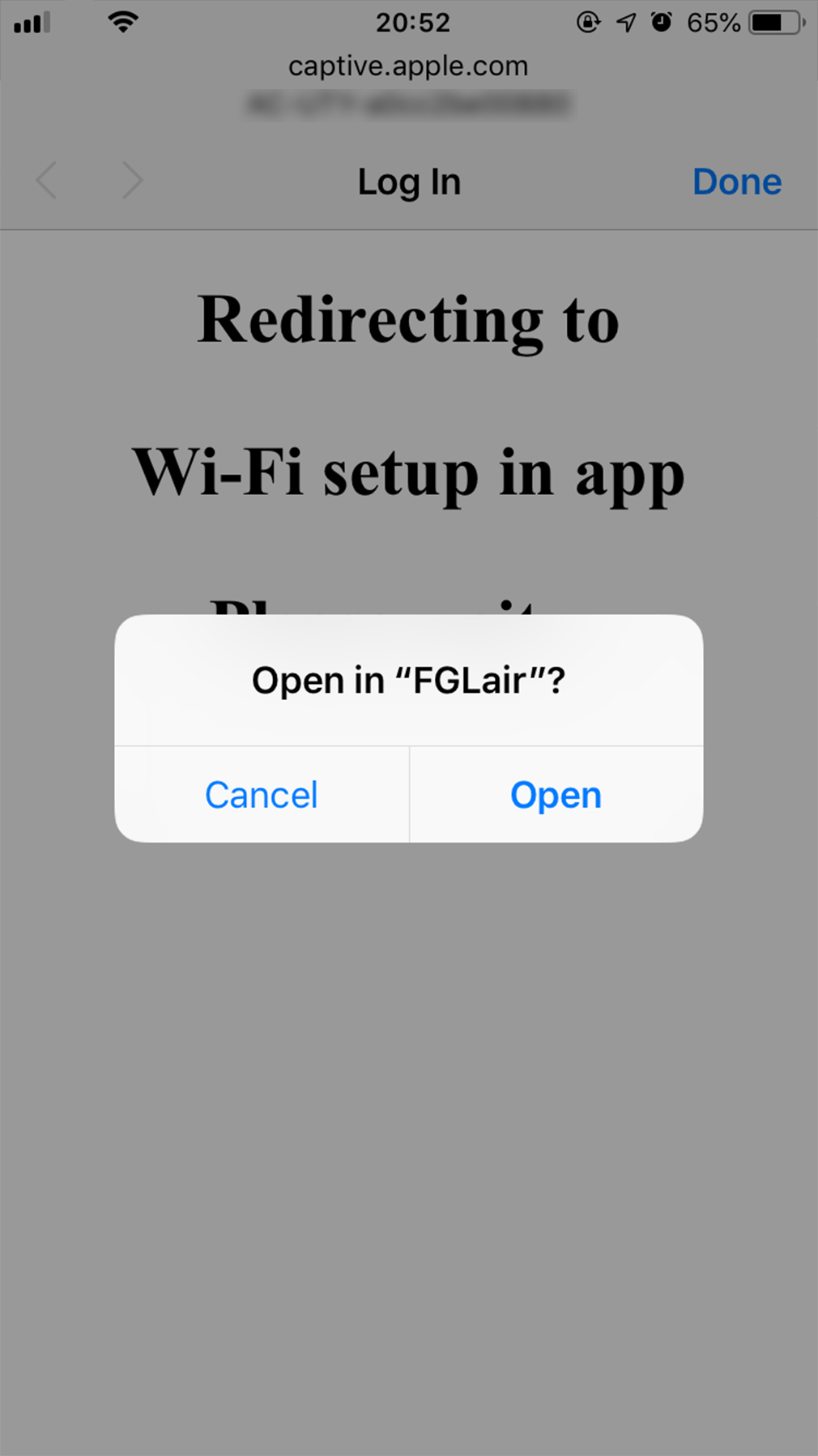
Tap [Continue].
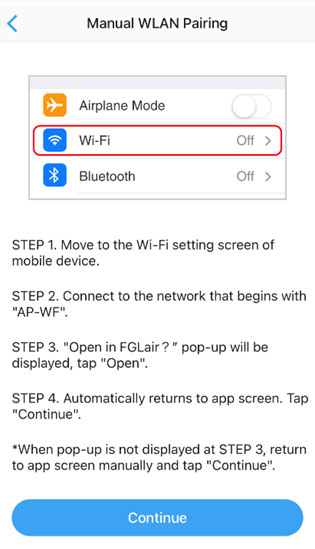
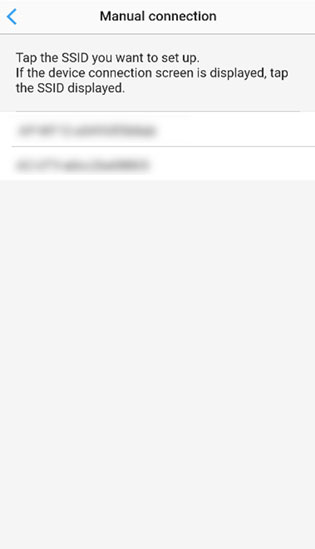
Select the SSID of the WLAN adapter you are connecting to.
For iOS, it is necessary to select the SSID of the adapter on the device's Wi-Fi setting screen.
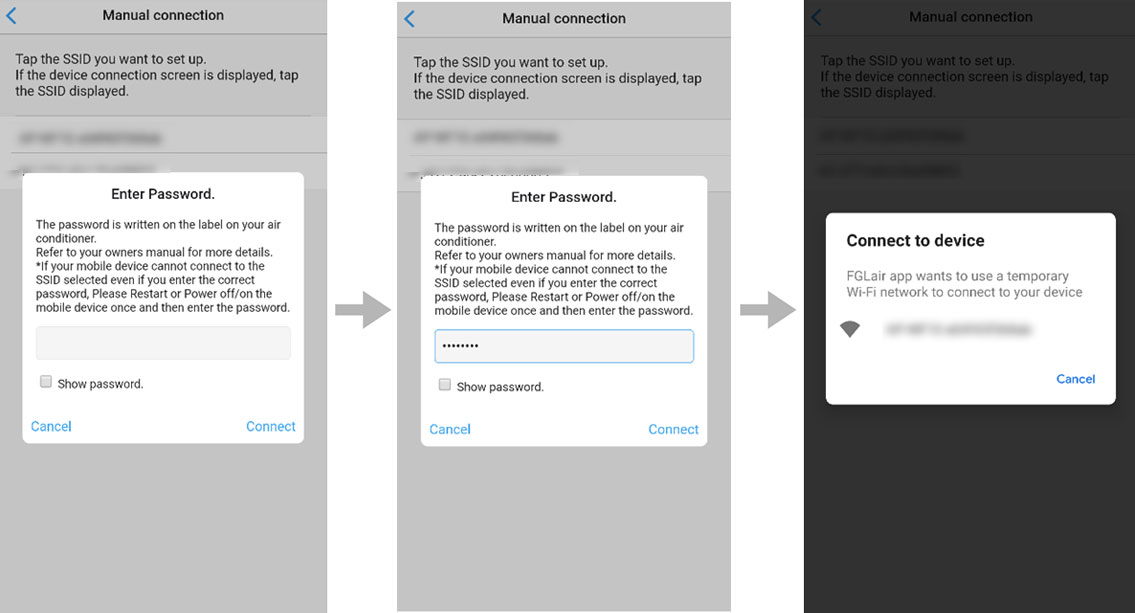
Enter the PIN code written on the WLAN adapter then press [Connect].
Depending on the type of WLAN adapter, you may not need to enter a PIN code.
If the device connection screen is displayed, tap the SSID displayed.
13
Select [Next] on the mobile app screen.
Page scroll
14
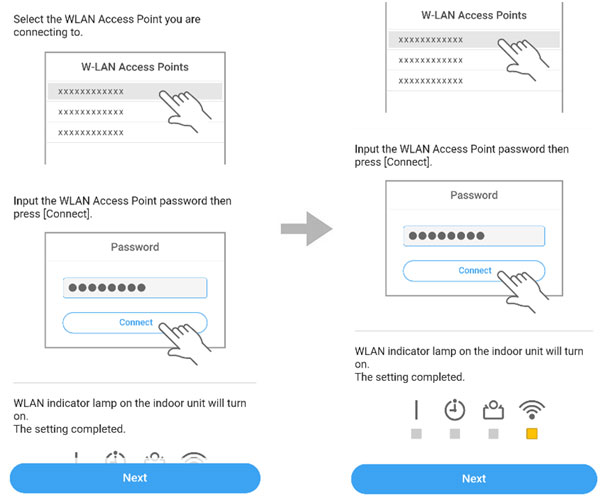
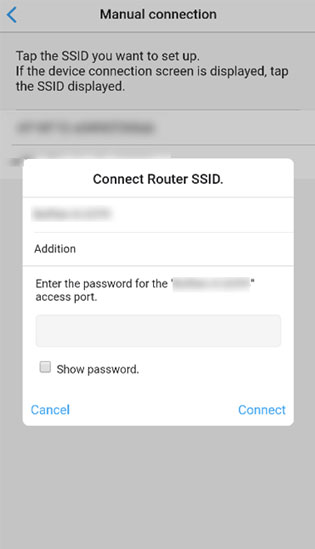
Select the WLAN Access Point you are connecting to.
15
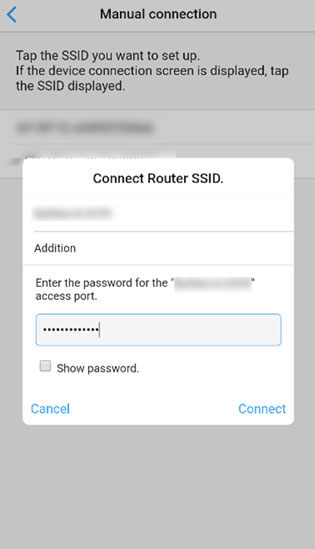
Enter the WLAN Access Point password then press [Connect].
16
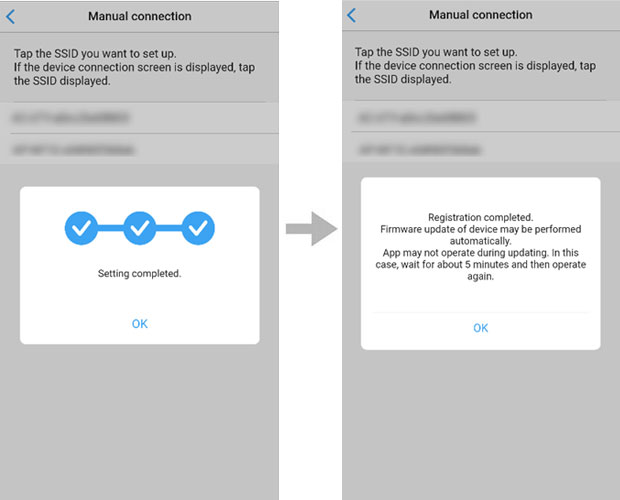
on the indoor unit will turn on.The setting is completed.
- *
- The time to complete the setting is different depending on the communication environment.
- *
- It takes max 15 minutes to complete the setting.
- *
- "FGLair" is a trademark of GENERAL Inc.
- *
- The company names and brand names referred to in this page are themselves the trademarks, registered trademarks, and products of the respective companies.
- *
- Screens, figures and movies are only for explanation.